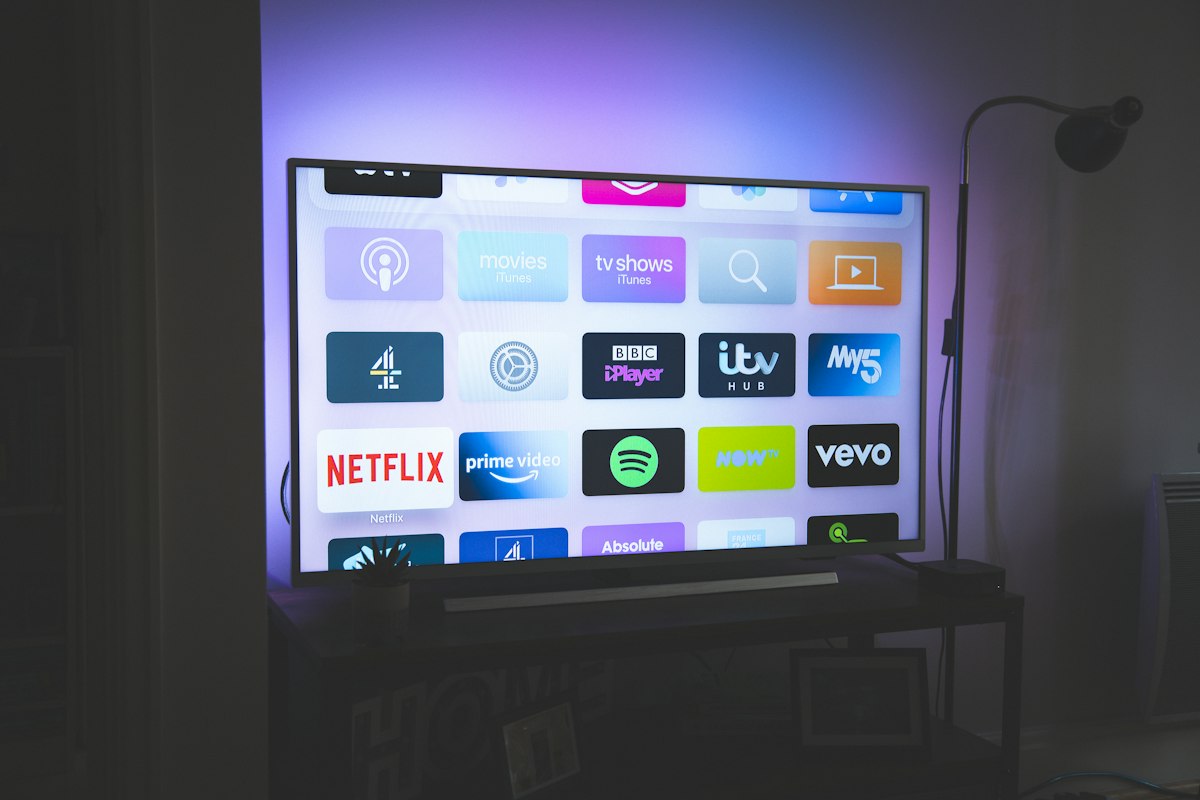
Samsung and LG are the two biggest TV manufacturers on the planet, and millions of their smart TVs are used for IPTV every day. The good news: setting up IPTV on either is very doable. The catch: Samsung runs Tizen and LG runs webOS, and neither platform has quite as many IPTV apps as Android.
This guide walks you through the best apps and the exact setup steps for both Samsung and LG smart TVs in 2026, plus the most common problems and how to fix them.
Before You Start: What You Need
- Your IPTV subscription with either an M3U URL or Xtream Codes (username, password, and server).
- A stable internet connection (see our bandwidth calculator).
- An IPTV app installed on your TV (instructions below).
- Your provider's EPG URL if you want the programme guide to load.
Most modern providers give you an Xtream Codes login (server + username + password) rather than a raw M3U file. Both work in nearly every app -- you just enter them a little differently. If you are unsure what your provider gave you, ask their support and use our M3U parser to inspect the playlist.
Best IPTV Apps for Samsung (Tizen)
Samsung's Tizen app store has fewer IPTV options than Android, but these are reliable and widely used in 2026:
- IPTV Smarters -- One of the most popular, supports Xtream Codes and M3U.
- SS IPTV -- A long-standing Tizen favorite, great for M3U playlists.
- Smart IPTV -- Paid activation but very stable and polished.
- Django IPTV -- A clean, modern option for catching streams.
How to Install on Samsung (Tizen)
Open the Samsung App Store
Press the home button on your remote, then open Apps and search for your chosen app (e.g. "Smart IPTV" or "IPTV Smarters").
Download and Open
Select Install, wait for it to finish, then open the app from your apps row.
Add Your Playlist
Choose Load M3U or Xtream. Paste your M3U URL or enter your Xtream server, username and password. Confirm and the channels will load.
Load the EPG (Optional)
In settings, add your provider's EPG URL so you get a full programme guide with images.
Best IPTV Apps for LG (webOS)
LG's webOS store also has a limited but workable selection:
- IPTV Smarters -- Available on webOS, full-featured.
- SS IPTV -- Works well on LG too, good for M3U playlists.
- Smart IPTV -- Solid choice for LG owners.
- Lg IPTV / ProgDVB -- Alternatives worth checking.
How to Install on LG (webOS)
Open the LG Content Store
Press the home button and open the LG Content Store (the app store icon).
Search and Install
Search for your chosen IPTV app and select Install.
Enter Your Playlist Details
Open the app and add your M3U URL or Xtream Codes credentials.
Configure and Enjoy
Add the EPG URL in settings and arrange your favourite channels.
What If an App Isn't Available in My Region?
Some IPTV apps are region-locked and won't show in your store. If you cannot find the app you want:
- Check whether the provider's website offers a direct download or a store ID (many apps list their own store links).
- Change your TV's region/zip code in settings to a supported country (often US or UK) and retry the store.
- As a fallback, use an external device like a Fire Stick or Android box, which have far more app options.
Common Problems and Fixes
Channels don't load or buffer constantly
Check your internet speed with our free speed test. Wired Ethernet is always more reliable than WiFi for 4K. Also confirm your TV's firmware and the IPTV app are fully updated.
EPG (programme guide) is empty
Re-add the EPG URL in the app's settings. If your provider uses a different EPG for smart TVs, use that one. Region or timezone mismatches can also hide listings -- see our EPG timezone guide.
The app crashes or is slow
Older smart TVs have limited RAM. Close background apps, clear the app's cache, restart the TV, and if needed reduce video bitrate to 1080p.
Only 1080p available even though my plan is 4K
Your smart TV's app or hardware may not support 4K playback. Check that the source is actually 4K and that your model supports it. Many TVs cap native-app streams below 4K, in which case a dedicated 4K box is the practical fix.
Unlike Android, you generally cannot sideload IPTV apps onto Samsung or LG TVs without developer-mode workarounds. If your preferred app is not in the store, an external device is the simplest solution.
Conclusion
Setting up IPTV on a Samsung (Tizen) or LG (webOS) Smart TV is straightforward with the right app. Start with a reputable app from your store, add your M3U or Xtream details, load the EPG, and you are streaming. If an app is region-locked or your TV struggles with 4K, a Fire Stick or Android box is a small upgrade that opens up many more options.
Ready to watch? Compare Earnest IPTV plans and get your smart TV streaming today.