
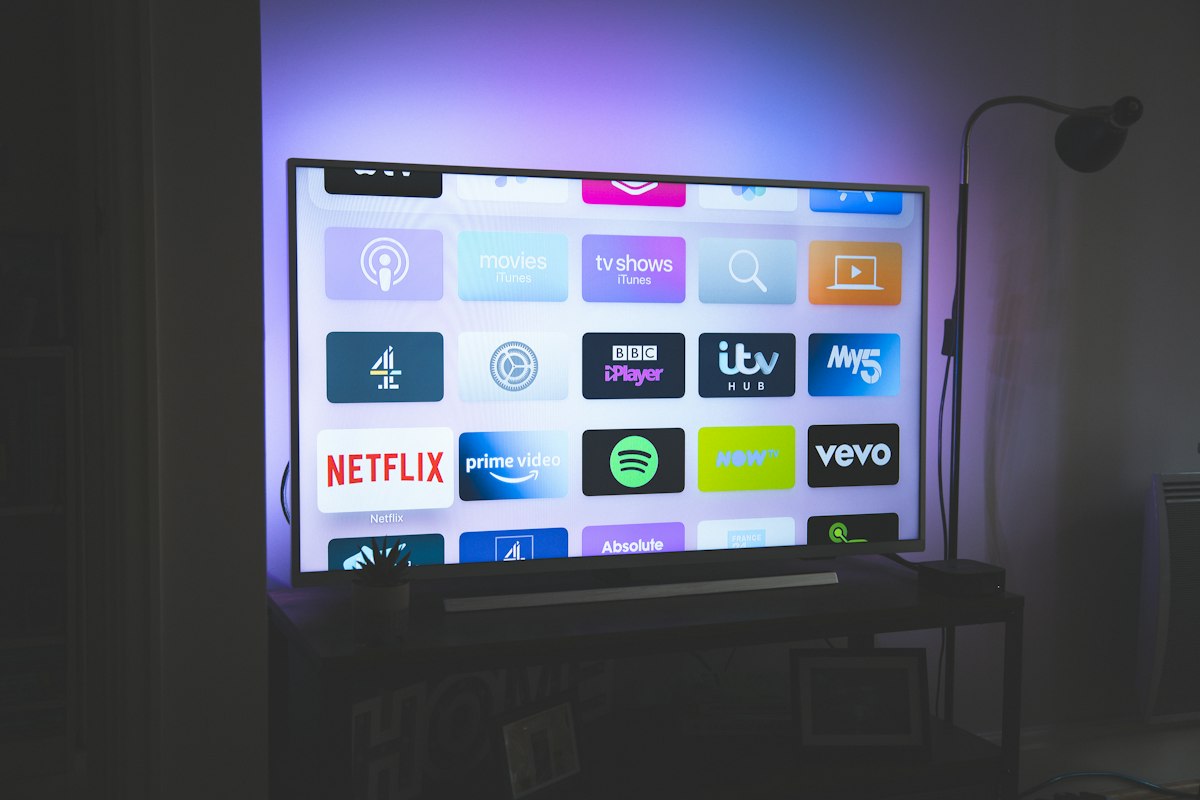
SS IPTV is a free player app for Samsung and LG smart TVs, and it will never ask you for a subscription — the developers state plainly that there is no activation process. The catch on Samsung is that the app is not published in the Smart Hub store, so it has to be sideloaded or launched from the TV's browser. The other catch trips up most first-time users: SS IPTV takes an M3U playlist, not an Xtream Codes login. If your provider gave you a server address, username and password, you must convert them to M3U first. This guide covers the install on both platforms, the two official ways to load a playlist, that conversion, and the fixes for the errors people actually hit.
What Is SS IPTV?
SS IPTV is exactly what its own documentation calls it: a free generic video player for smart TVs that plays streaming video over a local network or the internet. There is no activation, no licence key and no in-app purchase — the developers sell nothing at all. What the app does ship with is three optional content sources: Open TV (channels from verified partners), Provider (regional partners, which usually require your own contract) and Broadcast, which can tune your TV's own aerial, cable or satellite channels where the hardware allows. Everything else comes from a playlist you supply.
Several unrelated apps are called "SS IPTV" or something very close to it, and phone app stores will surface them first. The player in this guide is the smart-TV one documented at ss-iptv.com. Check where an app came from before you trust it: on LG it arrives through Smart World, and on Samsung you get it from ss-iptv.com rather than a store listing. If an app asks you to pay a subscription in order to play your own M3U file, it is not this one.
Because it is M3U-based, SS IPTV works with any provider that supplies a playlist link — including public and community lists. It also works with commercial providers, but you need the M3U version of their playlist rather than the Xtream login.
Which TVs Does SS IPTV Work On?
| Platform | Status | Notes |
|---|---|---|
| LG (webOS) | Yes — easiest install | Available from LG Smart World in any country, and free |
| Samsung (Tizen) | Yes — but sideload it | Not in the Smart Hub store. Install from a USB stick, or open app.ss-iptv.com in the TV browser |
| Sony (non-Android) | Yes | Supported on Sony smart TVs from 2013 onwards |
| Philips | Beta | The official docs list Philips as beta-testing, so some functions may not work |
| Amazon Fire TV / Android TV | Not listed | The developer documents smart TVs only — treat any build you find as unofficial |
| iPhone / iPad / Apple TV | No | Never published for iOS or tvOS |
| Windows / macOS | Use VLC | No native app; VLC plays the same M3U |
SS IPTV vs IPTV Smarters vs Smart IPTV
This is the decision that matters, because the three apps are not interchangeable:
| App | Login method | Cost |
|---|---|---|
| SS IPTV | Playlist link or file — no Xtream Codes field | Free, no activation |
| IPTV Smarters | Xtream Codes or M3U | Free |
| Smart IPTV | M3U URL, uploaded against your TV's MAC | One-time fee (~$6) |
If your provider gave you Xtream Codes (server + username + password), use IPTV Smarters — it is the only one of the three that accepts them. SS IPTV is the better pick when you already have an M3U link, or when you want a free player with no MAC-registration step.
For a fuller comparison of player options, see our best IPTV player apps roundup.
Install SS IPTV on Samsung (Tizen)
This is the part that catches people out. SS IPTV is not listed in the Samsung Smart Hub app store, so searching for it there will never find it. There are two supported routes — the browser one takes about a minute.
Option A — Launch it from the TV browser (quickest)
- Open the built-in web browser on your Samsung TV.
- Enter
app.ss-iptv.comin the address bar and load it. - Follow the on-screen prompt to start the player.
Option B — Sideload from a USB stick
- From ss-iptv.com, download
ssiptv_tizen_usb.zipfor Tizen sets (roughly 2015–2019) orssiptv_orsay_usb.zipfor older non-Tizen sets (roughly 2012–2015). - Unzip it and copy the contents to the root of your USB drive — the folder level genuinely matters. On Tizen the files belong in a
userwidgetfolder, on non-Tizen inssiptv. - Keep the USB stick plugged into the TV, then open the player from the TV's app list. It only offers itself while the drive is connected.
Install SS IPTV on LG (webOS)
LG is the easy one — the developers confirm SS IPTV is in LG Smart World and available in every country.
- Open LG Smart World (labelled the Content Store on newer webOS sets) from the launcher bar on the TV home screen.
- Search for SS IPTV and select it.
- Choose Install, then Open. It is free and needs no activation code.
Load Your Playlist: The Two Official Methods
Whichever platform you installed on, the app needs a playlist before it shows anything. The official documentation describes two ways, and they suit different situations. Open Settings from the main screen to reach both.
Method 1 — Upload by link (external playlists)
This is the quickest and the one you want for most subscriptions.
- Go to Settings → Content → External playlists.
- Press the Add button below the screen.
- Enter a title for the playlist and paste the playlist link into the URL field, then press Save.
- Your playlist appears on the main screen as its own tile. You can add as many external playlists as you like.
On some TV models the app fetches your link through its own server rather than your TV. That means the playlist URL has to be reachable from the open internet — a link that only works on your home Wi-Fi will fail to load. If a link upload refuses to connect, that is usually why.
Method 2 — Upload a file with an access code (internal playlists)
This is the route to use when your provider sends you an .m3u file rather than a link, or when a link upload will not work.
- Open Settings → General and press Get code.
- Take the code to ss-iptv.com on your computer, paste it in and press Add Device.
- Select your playlist file on the computer and press Save to upload it.
- Go back to the TV. The playlist shows up under the My playlist tile on the main screen.
The code is non-permanent: it is valid for 24 hours, or until you generate a new one. If the upload page rejects your code, pull a fresh one rather than retrying the old.
Which playlist format do I need?
| Upload method | Accepted formats | Limit |
|---|---|---|
| By link (external) | .m3u, .xspf, .asx, .pls | No limit |
| By access code (internal) | .m3u only | One live-channel list and one films/VOD list |
Two details that cause confusing failures: the playlist file must be saved in UTF-8 encoding, and uploading a new internal playlist replaces the previous one rather than sitting alongside it. If a playlist you uploaded yesterday has vanished, you uploaded a new one.
For the wider LG picture — other apps, wired Ethernet, and webOS-specific fixes — read our full IPTV on LG webOS guide. The Samsung equivalent is IPTV on Samsung & LG smart TVs.
Only Have Xtream Codes? Convert to M3U First
This is the step most guides skip, and the reason people conclude "SS IPTV does not work." SS IPTV has no field for a server address, username or password. If your provider sent you a host like http://provider.com:8080 plus a username and password, you need an M3U link instead.
An M3U link for the same subscription is built from those three pieces:
http://provider.com:8080/get.php?username=YOUR_USER&password=YOUR_PASS&type=m3u_plus
Rather than hand-assembling that, use our free Xtream to M3U converter — paste your server, username and password and it produces the finished URL. If you would rather build the Xtream side from an existing playlist, our Xtream Codes link builder does the reverse. You can sanity-check the result with the M3U parser before pasting it into the TV.
Fix the EPG and Timezone
A blank or scrambled guide is the most common complaint after setup. Most IPTV playlists carry a separate EPG URL which the app usually picks up automatically. If your guide is empty:
- Go to Settings → Content → External playlists and open the playlist you loaded.
- Check the EPG field is populated. If it is blank, paste the EPG link your provider supplied — it is normally a different URL from your playlist link, often ending in
xmltv.phporepg.php. - Save and restart the player.
If the guide loads but the times are shifted, the problem is the timezone offset rather than the guide itself. Our EPG timezone tool gives you the exact offset to enter.
Troubleshooting SS IPTV
- "Invalid URL" or "Playlist is empty" → almost always a paste or encoding problem. Playlist links are long and a single trailing space kills the load. Copy it again, paste it into a plain text editor first to strip stray whitespace, confirm you used the playlist link rather than the EPG link, and make sure the file is UTF-8 encoded.
- Link upload connects, then shows nothing → on some TV models the app fetches your link through its own server, so the URL must be reachable from the open internet. If it only opens on your home network, upload the file with an access code instead.
- Access code rejected on the upload page → the code is non-permanent and expires after 24 hours, or the moment you generate another one. Pull a fresh code from Settings → General → Get code rather than retrying the old one.
- Your old playlist disappeared → internal playlists are replaced, not merged. Only one live-channel list and one films/VOD list can exist at a time.
- Playlist loads but no channels → validate the file first with our M3U parser. If it parses cleanly, the provider's server is the problem.
- Channels listed, nothing plays → run our speed test. The developers' own minimums are 5 Mbps for SD, 10 Mbps for HD and 30 Mbps for 4K/UHD. On older webOS sets prefer a wired Ethernet cable — the Wi-Fi chip struggles with HD streams.
- Playback stops after a minute → the stream is probably not HLS. Test the same playlist in VLC first, then ask your provider for HLS streams.
- Sound but no picture → your TV's hardware does not support that codec or profile. Check the TV manual, or drop to a lower-quality stream.
- UDP streams will not play at all → turn on UDP Proxy in settings. It re-sends
udp://andrtp://streams over HTTP for TVs that cannot handle RTP/UDP natively. - Buffering in 4K → most "4K" channels are really 1080p. Our 4K vs HD guide explains what is realistic and which setting to use.
- Locking the adult category → SS IPTV has a built-in parental control, on by default, with PIN 12345. Change it in settings; a soft reset restores the default if you forget it. Our parental controls guide covers the other players too.
- Cannot find the app in a store → expected on Samsung: it is not in Smart Hub at all, so use the browser or USB method above. On LG it sits in Smart World in every country, so a genuine absence there is a different problem.
If nothing plays at all and the playlist is confirmed valid, work through our broader no-signal fixes.
Frequently Asked Questions
Does SS IPTV support Xtream Codes?
No. There is no field anywhere in SS IPTV for a server address, username or password, so you cannot paste Xtream Codes login details directly. Convert your Xtream credentials into a playlist link first, then add it through Settings > Content > External playlists.
Is SS IPTV free?
Yes, genuinely — the developers state there is no activation process and they accept no payments at all. Install it from LG Smart World, or sideload it on Samsung, and you still need your own playlist: the only channels it includes are the optional Open TV partner sources and whatever Broadcast can tune from your TV's own aerial or cable.
Does SS IPTV work on iPhone, iPad or Apple TV?
No. SS IPTV has never been published for iOS or tvOS — it is built for smart TVs (LG webOS, Samsung Tizen, Sony, and Philips in beta). On Apple devices use a different player such as IPTV Smarters or VLC.
Why does my playlist say Invalid URL or Playlist is empty?
Most often a paste or encoding problem: playlist links are long, and a single trailing space kills the load. Copy the link into a plain text editor first to strip stray whitespace, save the file as UTF-8, and confirm you used the playlist link rather than the EPG link. If the link itself is fine, check it is reachable from the open internet — some TV models load it through the app's server rather than directly.
Sources
Platform support, pricing and the upload steps in this guide come from the developer's own documentation, checked on 4 October 2026:
- Installing the app — LG Smart World availability, the Samsung browser and USB methods, Sony and Philips support.
- How to upload a playlist — the link and access-code methods, accepted formats, the UTF-8 requirement and playlist limits.
- SS IPTV FAQ — the no-activation policy, built-in content sources, parental control, UDP proxy and minimum bandwidth.
Conclusion
SS IPTV is the rare smart-TV player that is genuinely free, with no activation and no MAC-registration step, which makes it a good default — as long as your provider hands you a playlist link or file. Two things trip people up, and both are handled above: on Samsung the app is not in the Smart Hub store, so you install it over a USB stick or through the TV browser; and it has no Xtream Codes login, so Xtream credentials have to be converted into a playlist link first. If you would rather skip that conversion, use IPTV Smarters, which takes the server, username and password directly.
Want to see what a proper setup looks like? Explore Earnest IPTV plans — 18,000+ live channels and 80,000+ movies & series in up to 4K, with published terms and a DMCA policy.