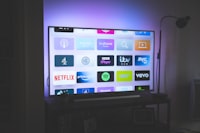

For many older viewers, the entire modern TV world feels like it was designed by someone who moved too fast — dozens of apps, tiny text, remotes with buttons nobody uses, and a fear that "I'll press the wrong thing and break it." That fear is the only real obstacle. IPTV itself, once set up, is genuinely easier to live with than cable: fewer channels you never watch, a clear guide, and no contact from service callers. This guide shows how to make IPTV work comfortably for seniors in 2026 — the right device, the right player, the right settings, and the help tricks that make the whole thing feel like a normal TV again.
Use the simplest player you can find (see below), set up one home screen with only the channels they actually watch, enable big-text/caption options, and lock everything else down. A Firestick or a plain Android box with one app pre-configured is a far better senior experience than an open smart TV home screen with hundreds of decisions per day.
The Right Device Makes the Whole Difference
A familiar remote and a simple home screen beat raw power every time. For seniors, the ranking usually looks like this:
- Firestick or inexpensive Android box with one player pre-installed — configure it once, tell them "hit the home button, then this one tile." Our Firestick install guide does the heavy lifting.
- A smart TV's own IPTV app on the channels they actually use — one fewer box and one fewer remote. The Samsung & LG guide covers it.
- An iPad or Android tablet for very gentle audiences — tapping a photo of a channel is more intuitive than any remote hierarchy.
The golden rule: set it up once, then hide the setup. All setup steps below are for you, the installer — the audience-facing part lands on a single home screen.
Choose a Simple Player
- IPTV Smarters Pro — the friendliest default. Big tiles, a clear Movies/Live split, and a simple login if you pre-enter it.
- Simple Firestick players with channel tiles — apps that let you pin favorite channels as a row of tiles on the main screen are ideal; that's effectively a "my TV" button.
- Avoid multi-feature power players for the primary screen — tools like TiviMate are excellent (see our player comparison) but their dense grids overwhelm audiences who just want to press "news."
Settings That Reduce Panic
- Enable captions and closed captions before day one — subtitle on by default short-circuits a whole class of "I pressed something" anxieties.
- Crop the channel list — hide the 90% they'll never watch and leave the ten news, weather and drama channels. Our channel finder guide shows how to hide and reorder.
- Turn on parental-style locks on the rest — a PIN on anything you don't want one-glance exposure to; the parental controls guide covers the settings.
- Disable accidental purchases and exits if the platform allows it, and pin the IPTV app first in the launcher/home row.
- Set up the EPG so the grid shows what's on now — a real program guide is familiar to anyone who grew up with a paper TV Guide. Our EPG setup guide walks through it.
The single biggest senior enabler is being able to help without being in the room. Set up so someone can mirror the TV to a phone or tablet over the same Wi‑Fi (most recent devices can), and write a laminated card with the three steps: 1) press Home, 2) touch the TV tile, 3) pick a channel. The card matters more than any software setting.
Network and Sound Tips for a Reliable Setup
- Use wired or a strong, simple Wi‑Fi — a flaky link causes buffering, and buffering is the #1 "it's broken!" moment. Our speed test guide confirms the link first, so you don't blame the app.
- Keep volume and remote key labels obvious — most seniors only need power, volume, channel up/down and okay. If the remote has a voice button, teach exactly that one trick; voice search removes the pain of typing.
- Leave notes, not portals — never hand them a username/password or a portal URL. Pre-enter everything yourself. The login screen is the top panic trigger.
Frequently Asked Questions
Is IPTV harder to use than cable for an older person?
After a one-time setup, IPTV is usually easier: less channel clutter, a clearer guide, no provider remote churn. The friction is almost entirely in the first session — which this guide removes by pre-configuring. Compare the everyday experience in our IPTV vs cable breakdown.
Should I buy a device with a dedicated "TV" button?
Yes if the budget allows. A remote with one big obvious button that jumps straight to the app is the cheapest panic-reduction money can buy on an Android box. The smart TV guide lists which TVs behave well too.
What about a senior who's never used a smartphone?
Skip tablet casting and stick to the rock-bottom path: Firestick with one pre-entered app, pinned first, captions on. They press one tile and the TV just works. Our setup guide has the whole sequence written out step by step.
Is there a risk of "wrong channel" rabbit holes or inappropriate content?
Only if you leave the full list exposed. Between hiding channels, parental locks, and placing the app first in the launcher, you can reduce the surface dramatically. The parental controls guide shows exactly which settings do this on the major players.
Conclusion
IPTV for seniors isn't about tech at all — it's about removing decisions. Pick the simplest device, install one app, hide the chaos, turn on captions, pin the channel row, and hand over a card with three steps. What remains is what older viewers actually want: reliable live TV, a familiar guide, and nothing to break. For the person doing the installing, that's an afternoon once; for the viewer, it's every day for years.
Set someone up with a service worth keeping. Explore Earnest IPTV plans — 18,000+ live channels and 80,000+ movies & series in up to 4K, with transparent rights-backed licensing.