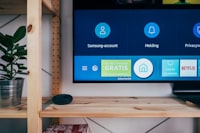
The Amazon Firestick is one of the most popular devices for IPTV streaming, and for good reason — it's affordable, portable, and powerful enough to handle HD and 4K streams. However, since Amazon doesn't allow IPTV apps directly in its App Store, the installation process requires a few extra steps. This guide walks you through the complete process of installing IPTV on your Firestick, from enabling developer options to logging into your first channel.
An Amazon Firestick (2nd generation or newer), a stable internet connection (15+ Mbps recommended), an IPTV subscription with login credentials (server URL, username, password), and about 10 minutes of your time.
Step 1: Enable Developer Options
Unlock Developer Settings
From the Firestick home screen, navigate to Settings > My Fire TV > About. Now, quickly click on your device name (e.g., "Fire TV Stick 4K") 7 times. You'll see a message saying "You are now a developer!" Go back one screen and you'll now see "Developer Options" in the menu.
If you don't see "Developer Options" after clicking 7 times, try clicking 8-10 times. Some newer Firestick firmware versions require extra clicks. If it still doesn't appear, your device may need a firmware update first.
Step 2: Enable Apps from Unknown Sources
Allow Sideloading
Go to Settings > My Fire TV > Developer Options. Turn on "Apps from Unknown Sources". This allows you to install apps that aren't in the Amazon App Store. You'll see a warning prompt — accept it. This is necessary because the Downloader app (which you'll install next) uses this permission to install IPTV apps.
Step 3: Install the Downloader App
Get the Gateway App
From the Firestick home screen, go to Find > Search and type "Downloader". Select the orange Downloader app from the results (developed by AFTVnews). Click "Download" or "Get" to install it. This free app is the most reliable way to sideload IPTV apps onto your Firestick.
Downloader is a legitimate, widely-used app with millions of downloads. It's not a hacking tool — it's simply a browser-based file downloader that allows you to install APK files. Amazon has approved it for the App Store.
Step 4: Download the IPTV Smarters APK
Get Your IPTV Player
Open the Downloader app. In the URL field, type the official download URL for IPTV Smarters Pro. You can find the latest APK link on the official IPTV Smarters website. Enter the URL, click "Go", and the APK file will begin downloading. Once downloaded, the installation prompt will appear automatically.
Step 5: Install and Open the App
Complete Installation
When the download completes, you'll see an installation screen. Click "Install" at the bottom right. Once installed, click "Open" to launch IPTV Smarters Pro. You can also find it in your app library under "Your Apps & Channels."
Step 6: Login with Xtream Codes
Enter Your Credentials
When you first open IPTV Smarters Pro, you'll be asked to choose a login method. Select "Login with Xtream Codes API". Enter the following from your IPTV provider: the Server URL (e.g., http://server.example.com:8080), your Username, and your Password. Give your playlist a name (e.g., "Earnest IPTV") and click "Add User".
After logging in, the app will download your channel list, VOD library, and EPG data. This may take 1-3 minutes depending on the size of the playlist. Don't close the app during this process.
Recommended IPTV Apps for Firestick
While IPTV Smarters Pro is our top recommendation, there are several other excellent IPTV players available for Firestick:
| App Name | Price | Best Feature | Difficulty |
|---|---|---|---|
| IPTV Smarters Pro | Free | Most user-friendly, cross-platform | Easy |
| TiviMate | Free / $5 premium | Best EPG, highly customizable | Medium |
| XCIPTV | Free | Clean interface, multiple players | Easy |
| OTTOcean | Free | Built-in speed test, parental controls | Easy |
| Kodi | Free | Most versatile, huge addon library | Hard |
Optimizing Your Firestick for IPTV
After installation, take these extra steps to ensure the best streaming experience on your Firestick:
- Disable automatic updates for IPTV Smarters — Sometimes updates change settings. Manually update when you're ready.
- Clear cache regularly — Go to Settings > Applications > Manage Installed Applications > IPTV Smarters > Clear Cache.
- Use a USB-to-Ethernet adapter — For the most stable connection, bypass WiFi entirely.
- Restart weekly — Hold the Select and Play/Pause buttons for 5 seconds to force a restart.
- Uninstall unused apps — Free up storage and RAM by removing apps you no longer use.
Don't download IPTV apps from random websites — always use official sources or trusted APK repositories. Don't enter your login credentials in apps you don't recognize. Don't skip the VPN — always use a VPN when streaming IPTV to protect your privacy and prevent ISP throttling.
Troubleshooting Common Issues
"App Not Installed" Error
This usually means you have an older version of the APK or your Firestick storage is full. Delete unnecessary apps and downloads, then try again. Also ensure "Apps from Unknown Sources" is enabled.
Buffering After Installation
Buffering is typically not caused by the installation itself. Check your internet speed, close background apps, and consider connecting via Ethernet. If the issue persists, try switching servers in your IPTV provider settings.
App Crashes on Launch
Clear the app cache and data, then log in again. If the problem continues, uninstall and reinstall the app. Make sure your Firestick firmware is up to date.
Frequently Asked Questions
Is installing IPTV on Firestick legal?
Installing IPTV player apps is completely legal — they're available on the Amazon App Store or through official APK sources. The legality depends on the content you stream and the licensing agreements of your IPTV provider.
Will this void my Firestick warranty?
No. Enabling developer options and sideloading apps does not void your Firestick warranty. These are built-in features that Amazon provides intentionally.
Do I need to re-install after a Firestick update?
Usually no — sideloaded apps survive system updates. However, if Amazon resets your developer options, you'll need to re-enable "Apps from Unknown Sources." Your installed apps and their data should remain intact.
Can I use IPTV Smarters on multiple Firesticks?
Yes. Install the app on each Firestick and log in with the same credentials. However, check your IPTV provider's simultaneous connection limit — most plans allow 1-2 concurrent streams.
Which Firestick is best for IPTV?
The Fire TV Stick 4K Max is the best choice for IPTV. It has a faster processor, more RAM, WiFi 6 support, and handles 4K content smoothly. The basic Fire TV Stick works fine for HD content at a lower price point.
Conclusion
Installing IPTV on your Amazon Firestick takes just a few minutes and gives you access to thousands of live channels, movies, and series. By following this step-by-step guide and optimizing your device settings, you'll have a smooth, buffer-free streaming experience. The Firestick remains one of the most cost-effective ways to get into IPTV.
Ready to start streaming? Get your Earnest IPTV subscription and follow this guide to be watching in minutes!